Input Service Distributor (ISD)
An Input Service Distributor is the office that books purchase invoices for services consumed by multiple branches. The ITC of these purchases is distributed to those branches through ISD invoices.
Setting Up
To set up ISD, follow the below steps:
- Set the Default ISD Provisional Account in the Company.
- Verify the ISD defaults in GST Settings. Distribute Expense with ISD Credit distributes the invoice amount along with the taxes. Auto Create ISD Recipient Invoice for Intra-Company Distributions creates the recipient side for you.
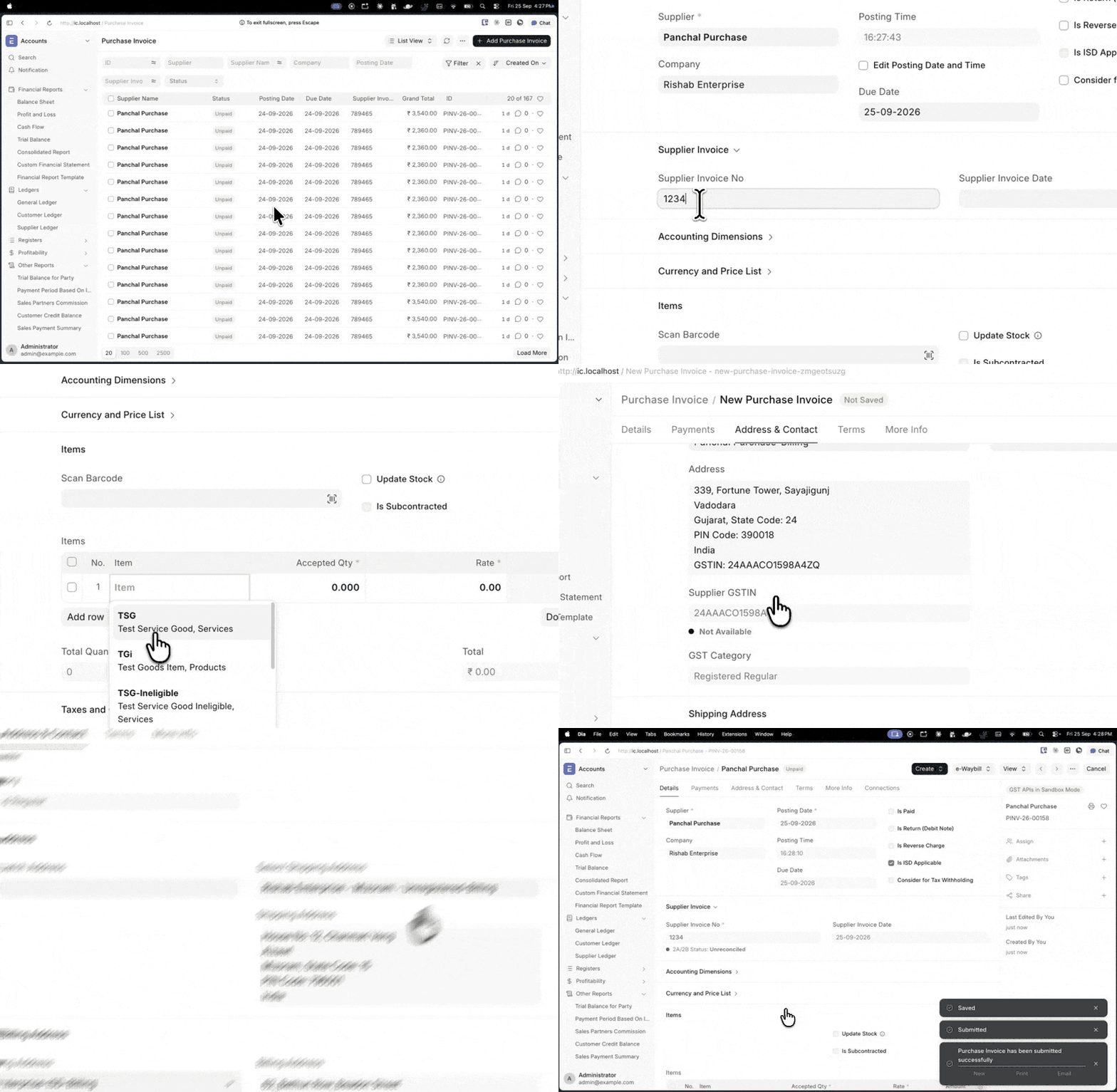
- Create a Company Address with the GST Category set as Input Service Distributor.
- Book the Purchase Invoices for common services with this address as the Billing Address.
INFO
Book a separate Purchase Invoice for the items that are ineligible for ITC.
Distribution from Purchase Invoice
To distribute credit to multiple recipients at once, follow the below steps:
- Open the submitted Purchase Invoice with Is ISD Applicable enabled.
- Click Create > ISD Distribution Invoices.
- Set the Posting Date in the dialog.
- Edit the recipient addresses, and remove the addresses that are not recipients.
- Enter the Turnover Amount (Prev. Yr.) against each recipient.
- Click Create ISD Distribution Invoices.
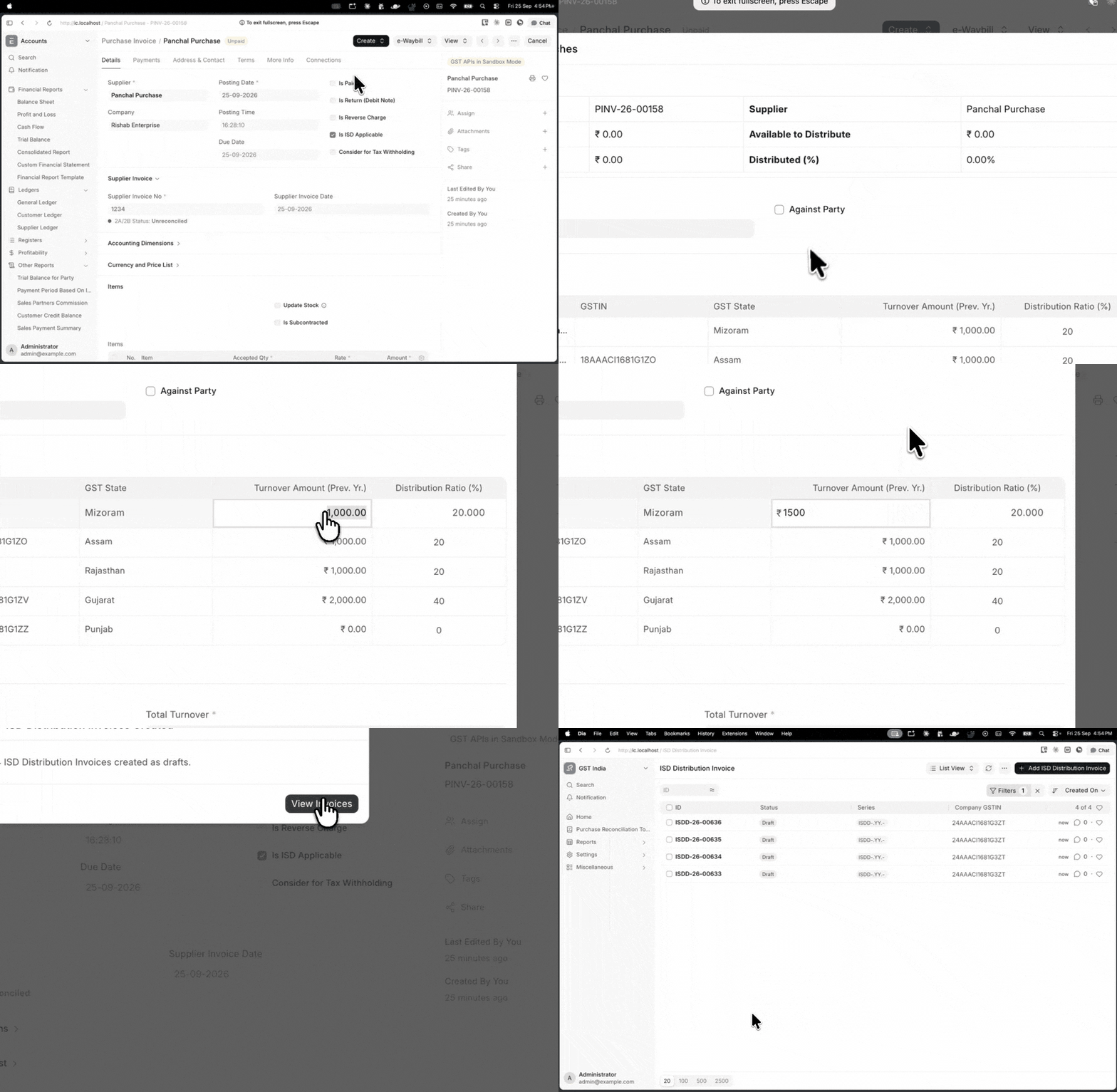
Review each draft that is created. Source Items shows the item-wise split, Taxes shows the ITC reduced on the distributor side, Distributed Expense shows the expense being distributed, and ISD Provisional Amount shows the amount lying in the clearing account. Submit the invoice, and open the Connections tab to view the ISD Recipient Invoice.
The distribution ratio is calculated from Turnover Records, which are updated on every submission.
INFO
For a Multi-Company setup, check Is Against Party in the dialog and select the Party Type, Party (the internal Customer or Supplier) and the recipient address. The ISD Recipient Invoice is not created automatically here. Create it from Create > ISD Recipient Invoice, verify the prefilled values and Submit.
Direct Invoice Creation
To distribute credit to a single recipient, follow the below steps:
- Create a new ISD Distribution Invoice.
- Add the Company, Distribution Address, Recipient Address and Posting Date.
- Select the Purchase Invoice. Source Items gets fetched automatically.
- Add the Recipient Branch Turnover and the Total Turnover, which is the sum of the turnovers of all recipients.
- Review Source Items, and check Taxes for the impact on the distributor and on the recipient.
- Save and Submit the Invoice.
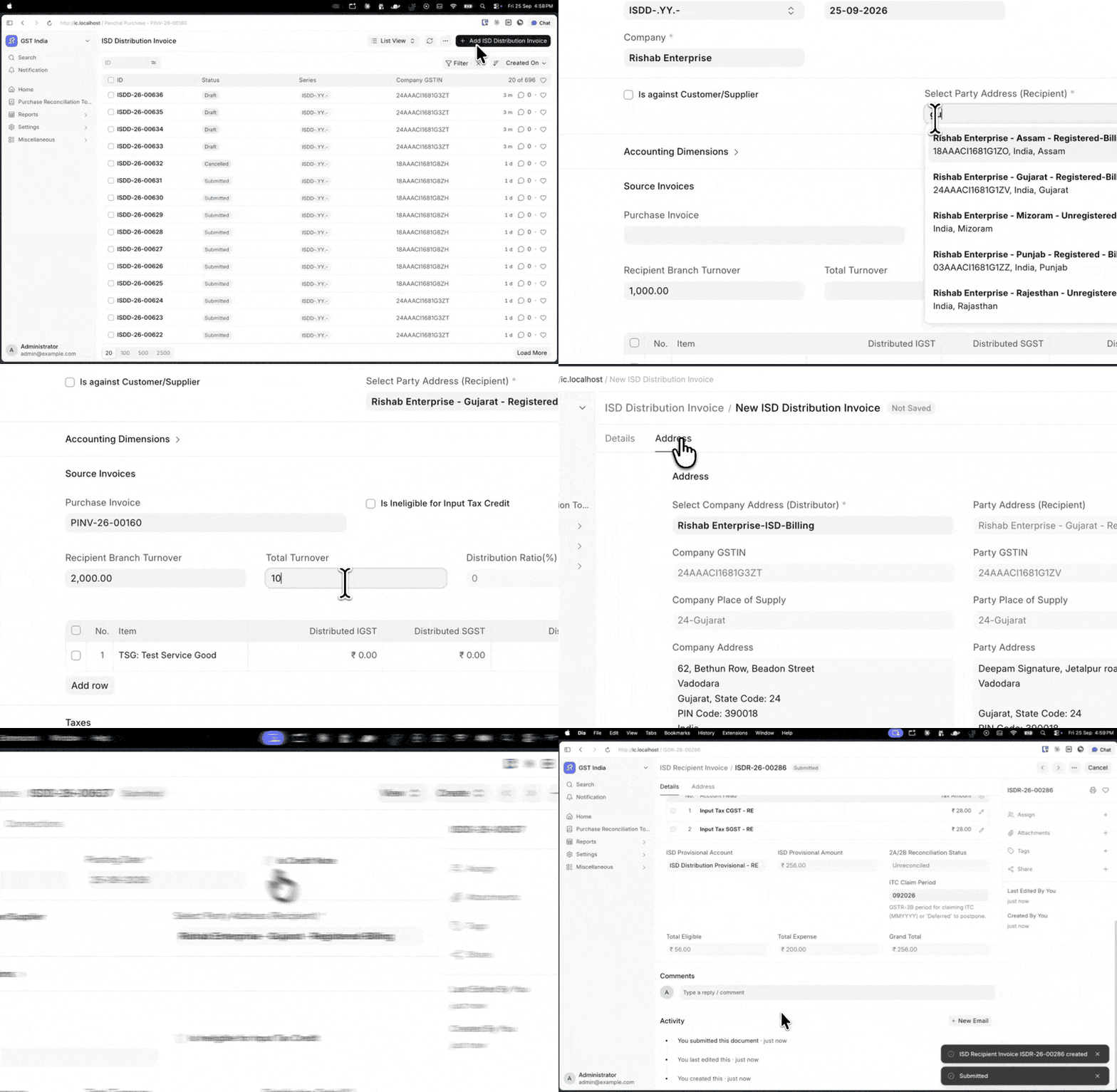
The ISD Recipient Invoice is created and submitted automatically, where Auto Create ISD Recipient Invoice for Intra-Company Distributions is enabled in GST Settings.
INFO
For a Multi-Company setup, check Is Against Party and select the Customer or Supplier along with its address. Create the recipient side from Create > ISD Recipient Invoice.
External Company
Where your Input Service Distributor is not managed in this ERPNext instance, the recipient branch can book the credit on its own. To do so, follow the below steps:
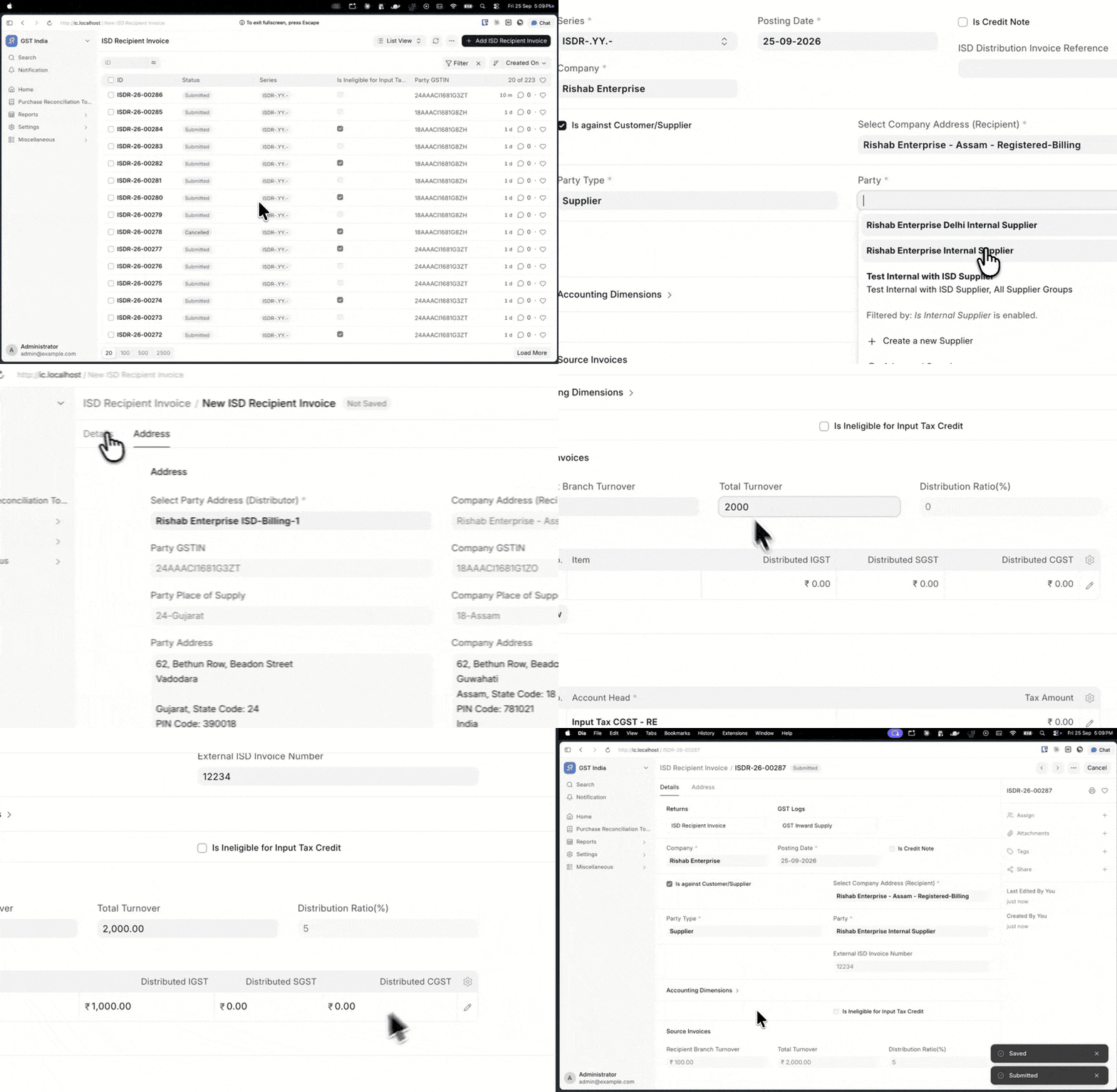
- Create a new ISD Recipient Invoice.
- Leave the ISD Distribution Invoice Reference blank.
- Enter the External ISD Invoice Number.
- Fill in the source items and the taxes.
- Save and Submit the Invoice.
Credit Notes
To reverse a distribution, follow the below steps:
- Open the submitted ISD Distribution Invoice.
- Click Create > Credit Note, and Submit.
- Create the Credit Note on the recipient side in the same way.